Fast speech translation test
We played the same fast-speaking clip to both apps. In this test, Google Translate got stuck: its text stopped updating while the speaker continued, leaving a large part of the speech untranslated. OmniTalk kept recognising speech and adding translated sentences in a conversation you can follow.
One fast-speaking example, recorded on iPhone. Watch how the recognised speech and translated text develop in each app. The recordings start together and use the first 41 seconds of the original YouTube clip. This shows conversation flow; it is not a scored translation-accuracy test.
We compared 10 apps and tried their main conversation tools in real situations. We tested short questions, long answers, face-to-face chats and meetings, both with and without background noise. We wanted to know one thing: which apps help the conversation flow, and which ones get in the way?
OmniTalk came first for translation quality, speed and ease of use in our field checks. It coped with noise better, showed useful text sooner and kept each completed sentence easy to read. Google Translate is still the easiest free app to try first, but we had to watch its transcript closely when the room was noisy. DeepL Voice makes more sense for company meetings than travel.
Live translator apps compared
| App | Best for | How the conversation works | Free use | Paid price | Main platforms |
|---|---|---|---|---|---|
| Google Translate | A free tool for almost anything | Conversation, listening and turn-by-turn voice modes | Free, with no published minute limit | Free | iPhone, Android, web |
| Apple Translate | iPhone owners and offline travel | Two-way spoken conversation, including offline with downloaded languages | Free, with no published minute limit | Included with Apple devices | iPhone, iPad, Apple Watch |
| Microsoft Translator | Free split-screen conversations | Real-time speech and 1-to-1 split screen | Free, with no published minute limit | Free | iPhone, Android |
| OmniTalk | Live conversations, long speech and meetings on iPhone | Continuous two-way translation, including offline BASIC conversation | Unlimited BASIC translation with downloaded languages; 1 hour of PRO live translation/month | From $5.99/month in some countries; $69.99/year in the US | iPhone |
| DeepL Voice | Company meetings | Live translated captions in online or in-person meetings | Trial by request; no public minute allowance | Custom sales quote; the separate DeepL Individual plan is about $105/year | Web, Teams, Zoom, Google Meet |
| iTranslate | A paid travel toolkit | Voice-to-voice conversations | Free download, but our check found the useful live features gated behind PRO | From $12.99/month or $99.99/year | iPhone, Android, web |
| Naver Papago | Korea, Japan and nearby Asian travel | 1-to-1 conversation mode | Free, with no published minute limit | Free | iPhone, Android, web |
| Yandex Translate | Russian and a broad mix of free translation tools | Online dialog mode with tap-to-speak turns | Free, with no published basic minute limit | Free; advanced Translate AI requests are limited | iPhone, Android, web |
| Samsung Interpreter | Owners of supported Galaxy phones | Split-screen Conversation mode and one-way Listening mode | Included on supported devices | Included with compatible Galaxy devices | Selected Samsung Galaxy phones and tablets |
| JotMe | Meeting features, but a poor mobile experience in our check | Live captions, voice translation and meeting notes | 20 live translation minutes/month | Pro $20/month; Premium $30/month | Web, desktop, mobile, Google Meet |
Sources: official product pages, documentation and US App Store listings for Google Translate, Apple Translate, Microsoft Translator, OmniTalk, DeepL Voice, iTranslate, Naver Papago, Yandex Translate, Samsung Interpreter and JotMe, retrieved 2 September 2026. Prices may differ by country, billing period and App Store offer.
How we checked the apps
We did more than read App Store descriptions. We opened the main conversation apps and used them for short chats, longer speech, meetings and situations with background noise.
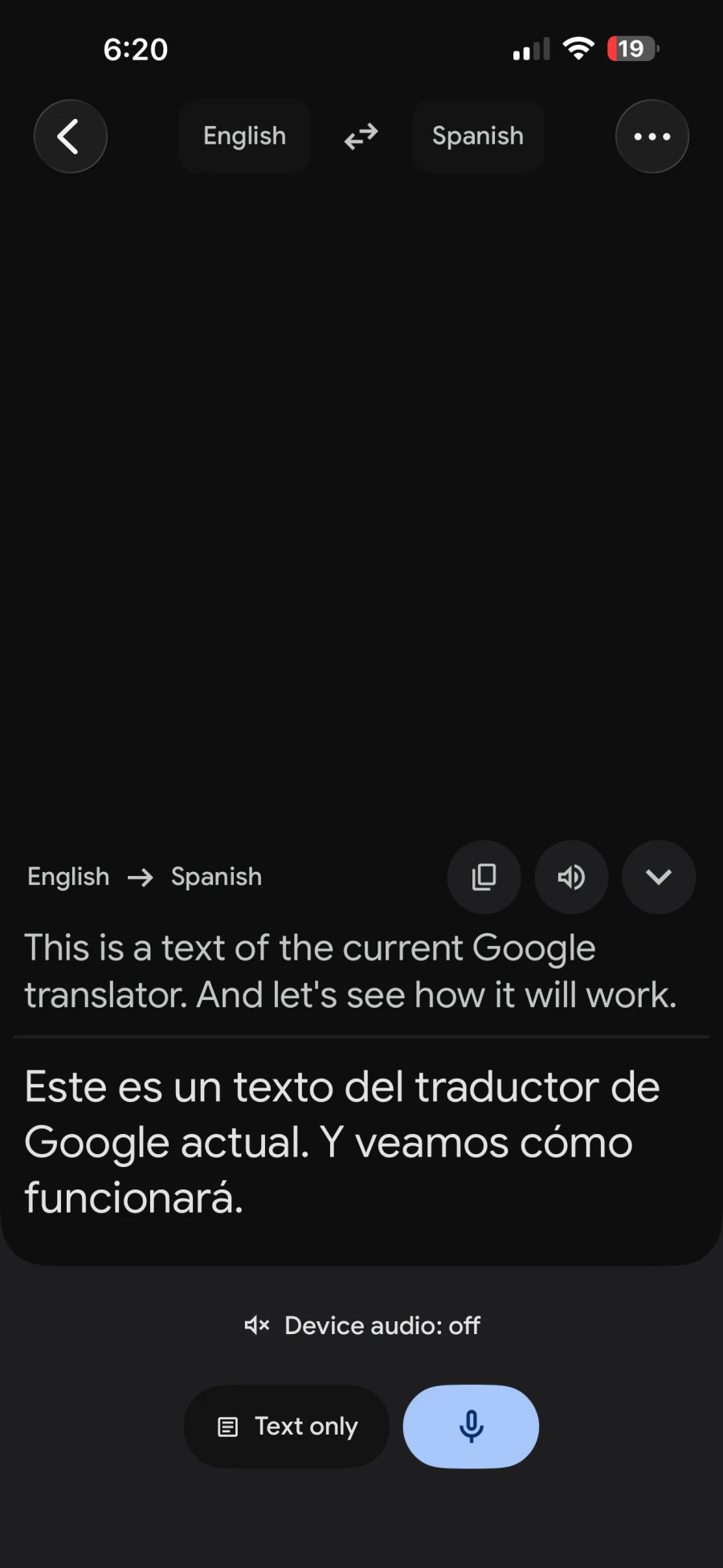
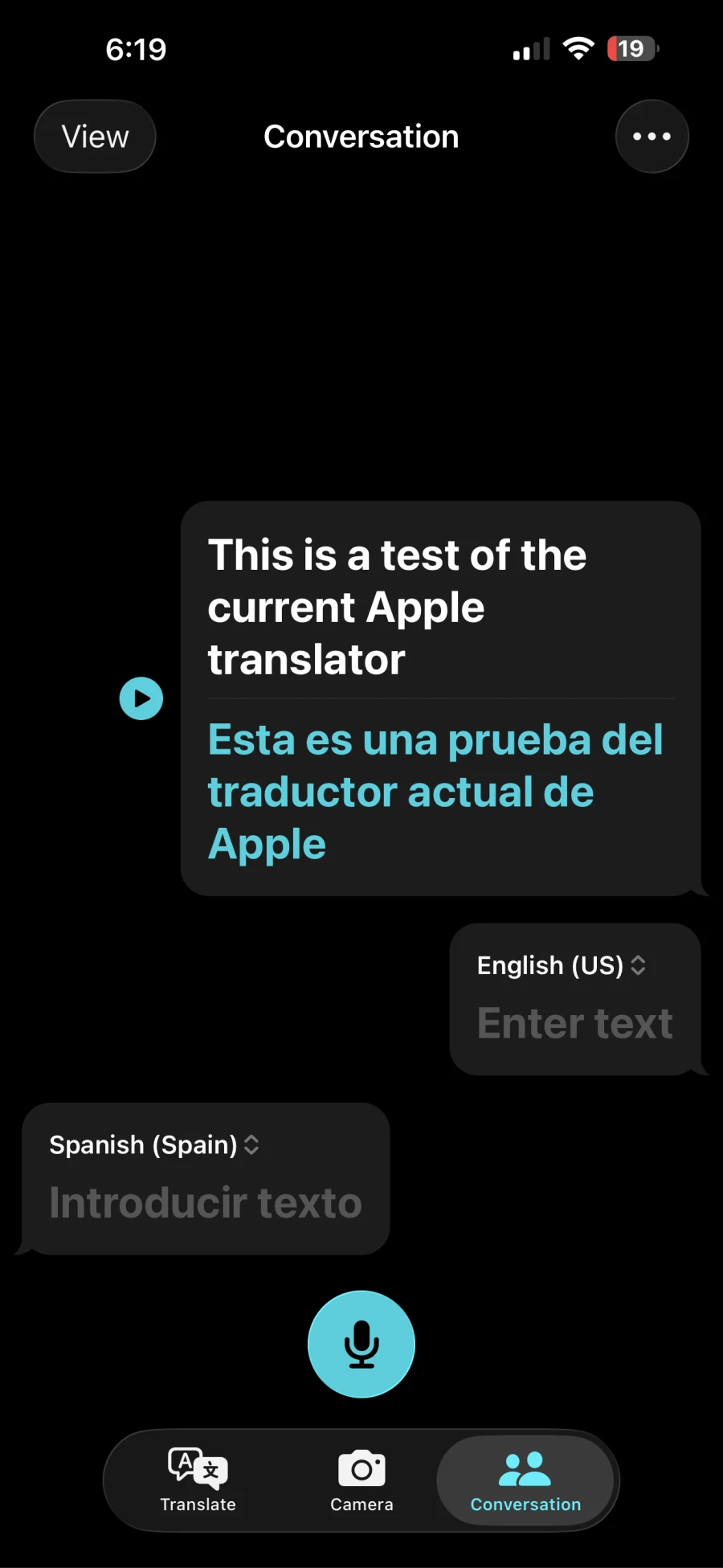
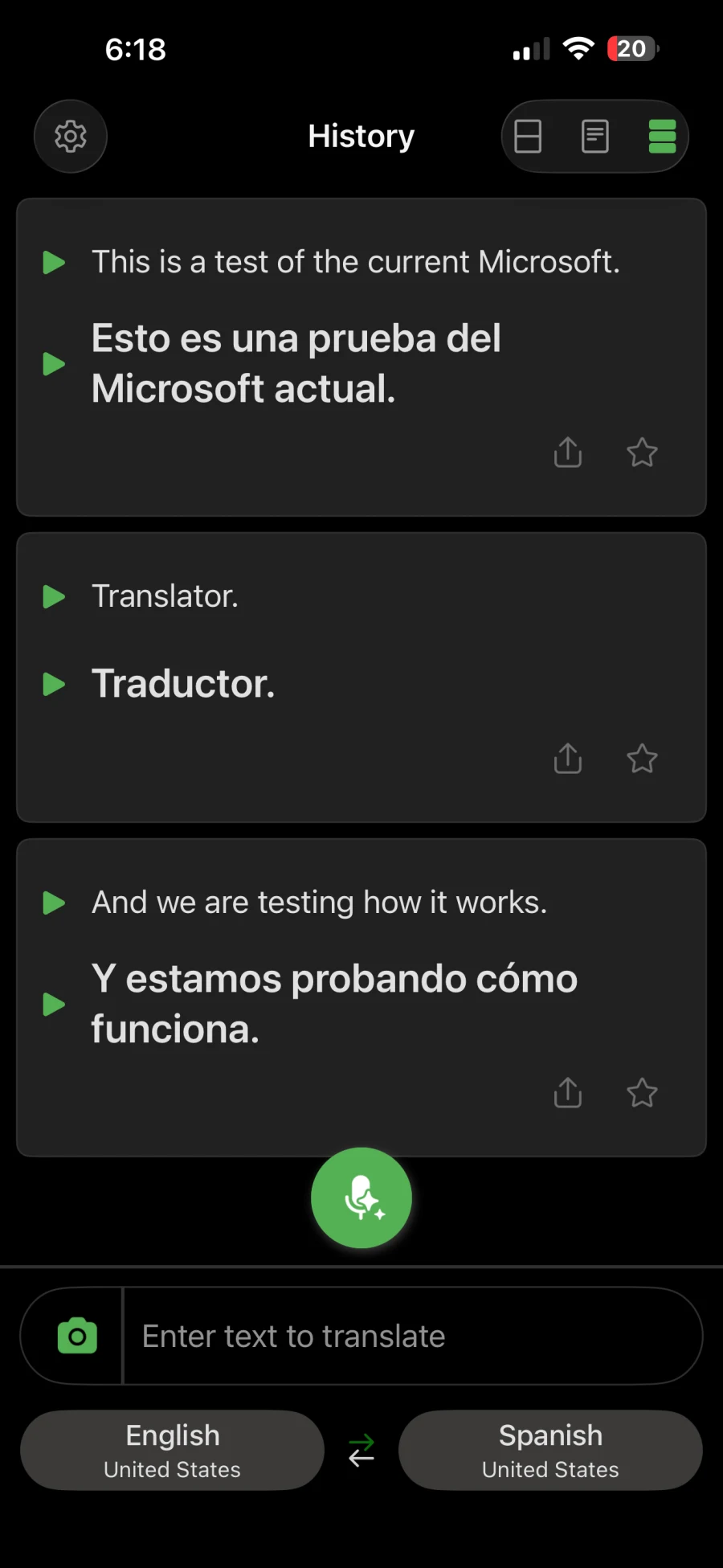
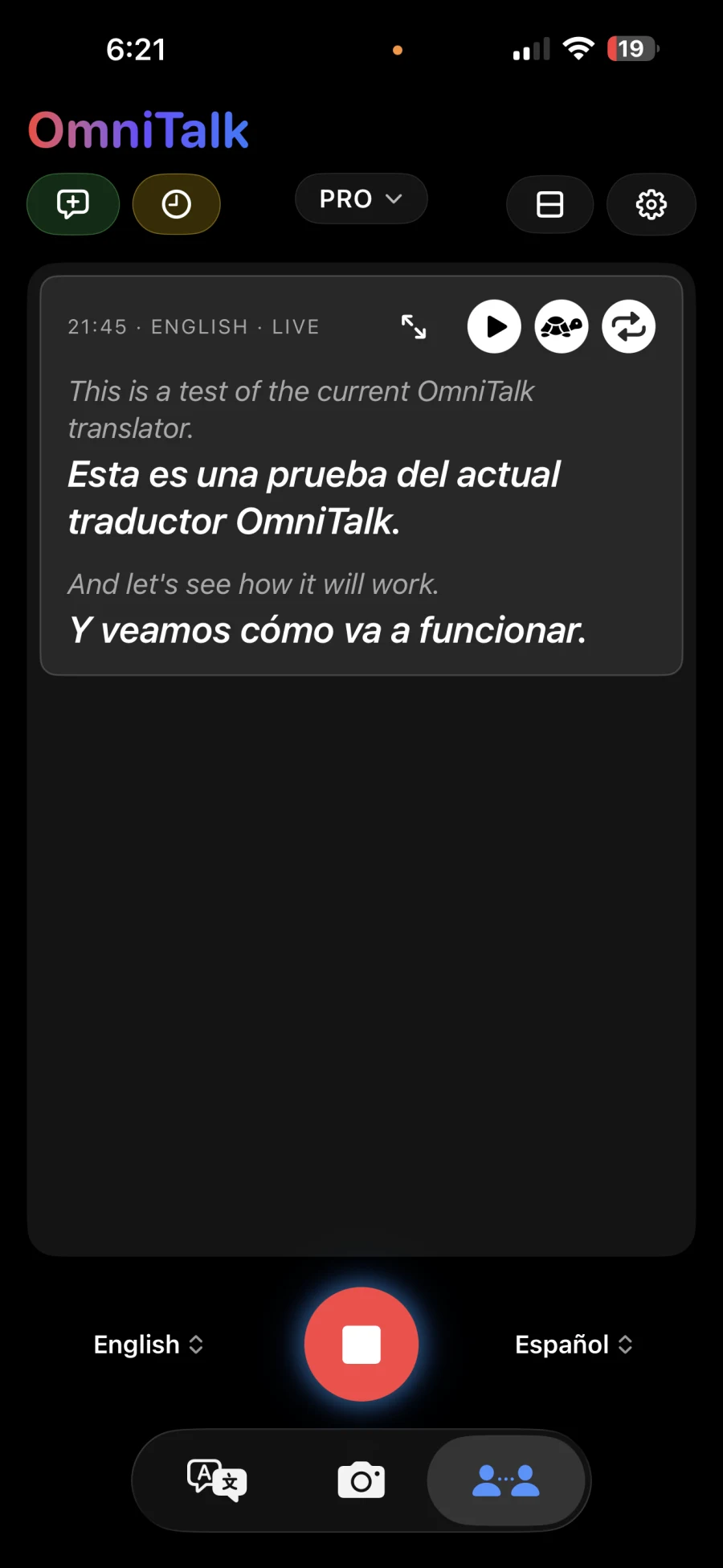
One simple test showed how differently the apps handle a normal pause. We said, “This is a test of the current [app name] translator.” Then we paused for 2–3 seconds before saying, “And let’s see how it will work.” We used the same two-sentence pattern each time and changed only the app name.
That short silence matters. People pause to think, remember a word or take a breath. A live translator should not decide that the conversation is over every time this happens. The screenshots below show the result we saw in each app.
We paid attention to the things you notice after a few minutes:
- How long do you wait for a useful translation?
- Does the app hear you when the room is noisy?
- Can you trust the transcript, or must you check every line?
- Can you read the result while the other person keeps talking?
- Does the app still feel comfortable during a long conversation?
- Is it made for two people sharing a phone, or for a whole meeting?
Samsung Interpreter and Yandex Translate were added later. We checked their official documentation, but we did not include them in the same hands-on pass. We will not pretend otherwise.
This was a practical check, not a lab test. We used different rooms and devices, and we did not measure response times with a stopwatch. When we call one app faster, we mean it felt faster in use. Prices, limits and supported devices come from the official sources linked in the article.
What stood out in live use
| App | What happened with noise | Speed and checking | Reading the result |
|---|---|---|---|
| Google Translate | It missed more words when there was noise in the background. | It translated the two sentences correctly enough, but the response felt slow. | Fine for a short exchange, but it kept pulling our attention back to the screen. |
| Apple Translate | Noise caused many wrong words, and some translations made little sense. | It stopped listening during a normal 2–3 second pause in our test. | We had to tap the microphone again before we could finish the second sentence. |
| Microsoft Translator | Noise was not the main problem for us. | It often treated a short thinking pause as the end of a sentence. | A single thought appeared as several fragments, which felt awkward to read. |
| JotMe | The overall experience was the problem. | It felt slow, and too many translations needed checking. | The layout felt dated, crowded and difficult to use in a live conversation. |
| OmniTalk | It continued to pick up useful speech when noise was present. | The result felt immediate, and it stayed active during the pause. | It kept listening for up to 10 seconds of silence and showed each finished sentence on its own. |
OmniTalk can translate a long two-way conversation or a meeting, but it does not translate a regular phone call. Phone-call translation is a different category from the face-to-face apps compared here.
What does a live translator app do?
A live translator listens to one language and gives you the meaning in another. You may see the translation as text, hear it aloud or get both at once.
Most apps use one of three conversation styles:
- Turn by turn: You speak, stop and wait. Then the other person replies. It works well enough for a quick question at a hotel or shop.
- Continuous translation: The app keeps listening while someone talks. This feels more natural in a long conversation, lesson or presentation.
- Call or meeting translation: Everyone stays on their own device while the app adds captions, translated audio or a page people can share.
The word “live” can be misleading. Some apps still make both people stop after every sentence. Others keep listening for 20 minutes without anyone touching the screen.
Which AI providers do these translator apps use?
It is easy to assume that every new translator uses OpenAI or Gemini. Public information tells a different story. Some companies build their own models. Others use outside services but do not say exactly which company handles each step.
One quick clarification: Naver and Papago are not separate translators. Papago is the app made by Naver.
| App | What the company publicly says powers it | What remains unknown |
|---|---|---|
| iTranslate | iTranslate says it uses neural machine translation and built its own speech and translation models for offline use. | It does not name the provider behind every online language or feature. There is no evidence that the whole app simply runs on OpenAI or Gemini. |
| Naver Papago | Naver says Papago combines its own speech recognition, speech output and neural translation technology. | Naver does not name the exact model used for every language pair. Its public material does not say that OpenAI or Gemini powers the main translator. |
| Yandex Translate | Yandex says it developed the translation technology itself. The app normally uses the phone's speech recognition for input and the device voice for spoken results. | The model changes with the mode. Yandex says Translate AI takes a little longer than its Quick translation option. |
| Samsung Interpreter | Samsung presents Interpreter as part of Galaxy AI. Downloaded language packs let supported features run on the phone without internet. | Samsung does not name every model used on every phone or language. Support depends on your device, region and software version. |
| JotMe | JotMe says it uses its own speech and translation models along with outside cloud services. | JotMe does not name the model used for each job. Its privacy page lists AWS and OpenAI as possible subprocessors, but that does not prove OpenAI translates every conversation. |
Sources: iTranslate's explanation of its neural translation and in-house offline models; Naver's description of Papago's in-house technology; Yandex's model and voice notes; Samsung's Interpreter documentation; and JotMe's model disclosure note, retrieved 2 September 2026.
Why a fast AI model can still feel slow
A voice translator does several jobs before you see a result. It listens for the end of your sentence, turns speech into text, translates it and may create a new spoken voice. If any part happens in the cloud, the data must also travel to a server and back.
Every small wait adds up.
The translation model may not cause the longest delay. An app often waits for a complete sentence because the extra context can improve the result. It may also sit through a short silence to make sure you have finished. Wait too long and the conversation drags. Answer too soon and one sentence breaks into several pieces.
That is the problem with many cloud-based apps. The technology may be fast, but people still notice the pause. If both speakers keep waiting for the screen, the conversation no longer feels live.
The provider's name does not tell you how fast the app will feel. OpenAI, Gemini or an in-house model can all sit inside a slow product. What matters is how the app handles streaming audio, pauses, partial text, network requests and spoken output.
Newer systems try to avoid the old record, stop and send process. Microsoft describes the difference between continuous streaming and systems that cut audio into chunks first. OpenAI's documentation shows the same trade-off: waiting can make sentence detection more accurate, while an eager setting answers sooner. See Microsoft's streaming translation overview and OpenAI's real-time turn-detection documentation, retrieved 2 September 2026.
We cared about how quickly a useful sentence appeared, not how quickly the first word flashed on screen. JotMe made us wait too long. Microsoft often answered too soon and split one thought into fragments. OmniTalk found the better balance in our checks: the text appeared quickly, but short thinking pauses did not break the sentence apart.
1. Google Translate: the best free starting point
What you can use it for: Google Translate is the all-purpose option. It translates typed text, speech, conversations, signs, menus and photos. You can also download languages before a trip.
How it works: In Conversation mode, two people take turns speaking. Google also offers a listening mode, a face-to-face screen and translated speech through headphones. The exact features depend on the language you choose.
Will it work for you? Probably. It is free, covers a huge number of languages and handles most jobs a traveller will meet. It is also the first app we would check for a less common language. Google handled our two-sentence pause test, but it took longer to return the translation than OmniTalk. Noise caused a bigger problem: Google missed words, so we kept looking down to make sure it had heard us correctly.
How long you can use it: The app is free, and Google does not publish a daily voice limit for normal use.
Pros: It is free, works on Android and iPhone, covers many languages and has good camera tools. You can download languages for offline use.
Cons: It does not translate normal phone calls or create meeting notes. Conversation mode still feels like taking turns with the phone instead of having a natural chat. The response felt slow in our pause test, and we could not trust the speech recognition in noise without watching the screen.
Choose Google Translate for quick travel questions, menus, signs and occasional conversations. It is the easiest free place to start. See Google Translate on the App Store, retrieved 2 September 2026.
2. Apple Translate: the easiest choice for iPhone owners
What you can use it for: Apple Translate is the simple option already there if you use an iPhone, iPad or Apple Watch.
How it works: Choose two languages and open the Conversation tab. Apple detects who is speaking, shows both sides as chat bubbles and can read the translation aloud. You can also turn the screen so each person reads from their side of the phone. Download both languages first and the full voice conversation keeps working without internet. Apple has a separate Live Translation feature for calls, Messages, FaceTime and compatible AirPods on supported devices.
Will it work for you? Yes, if Apple supports your languages and you only need short turns. The offline mode is useful abroad and keeps the conversation on your device. However, Apple stopped listening during the 2–3 second pause in our test. We had not finished speaking, but the app had already ended the turn. We had to tap the microphone again to say the second sentence.
That became the most annoying part of using it. A person may pause for a few seconds while thinking, especially when speaking a second language. Pressing the microphone again and again breaks the flow of a real conversation. Noise was another weakness: Apple heard many words incorrectly, and some results made little sense.
How long you can use it: There is no subscription or published minute limit. It comes with compatible Apple devices.
Pros: It is free, needs no account and has a clean face-to-face view. The whole voice conversation works offline once both languages are downloaded.
Cons: Apple supports far fewer languages than Google. Call and AirPods translation also depend on your phone, accessories, region and language pair. In our test, a 2–3 second pause ended listening too soon, and speech recognition became unreliable when background noise was present.
Choose Apple Translate if you already use an iPhone and want a free, built-in translator for short or offline conversations. Sources: Apple's Conversation guide and Translate on the App Store, retrieved 2 September 2026.
3. Microsoft Translator: free split-screen conversation
What you can use it for: Microsoft Translator handles text, speech and photos for free. Its best feature is a split-screen conversation for two people sharing one phone.
How it works: Half of the screen faces you and the other half faces the person across the table. Both people can see the original words and the translation. The layout is useful, but the sentence timing was not. When someone paused to think, Microsoft often decided the sentence was over and placed a single word or fragment on its own line.
Will it work for you? Try it if you want a free app and prefer its split-screen layout to Google or Apple. Microsoft lists more than 100 languages for text, but some features work in fewer languages.
How long you can use it: The app is free, with no published limit for voice translation.
Pros: It is free and the two-person layout is easy to understand. It also translates photos and offers offline packs for text and camera use.
Cons: Microsoft broke one spoken thought into several pieces whenever the speaker paused. Reading the result felt awkward. Its old multi-device conversation feature has also been retired, so it is no longer a good choice for a group joining from separate phones.
Choose Microsoft Translator for a free conversation across one table, especially if both people want to read from the same phone. Sources: Microsoft Translator features and Microsoft Translator on the App Store, retrieved 2 September 2026.
4. OmniTalk: the best live conversation experience in our field checks
What you can use it for: OmniTalk is made for long speech, two-way conversations and meetings on an iPhone. Put the phone between two people, use it while travelling or let it follow a speaker in a meeting. It also translates typed text and camera images. PRO adds video, audio and earbud features.
How it works: OmniTalk listens and translates as the conversation continues. In the version we tested, it waited through up to 10 seconds of silence before it stopped listening. That leaves enough time for a natural pause without keeping the microphone open long after the conversation has ended.
OmniTalk also has Isolation Mode. When English and Spanish are selected, it listens only for those 2 languages. If it hears another language nearby, it does not try to recognise or translate it. This helps keep unrelated conversations out of your transcript in multilingual places such as airports and meetings.
The 2–3 second pause did not cut our test in half or end the session. When the speaker continued, OmniTalk kept listening and showed each finished sentence in its own block. You can find the latest thought at a glance instead of searching through a wall of text. In 180-degree mode, the phone lies between two people and each side of the screen faces the right person.
Will it work for you? Choose it if you use an iPhone and hate the usual tap, speak and wait routine. OmniTalk handled background noise better than Google and Apple in our checks. It also gave us the quickest useful translation, so the conversation stopped less often. Download a supported language pair and the same two-way conversation works offline in BASIC mode. The iPhone handles both listening and translation; you still get a live voice conversation, not a text-only fallback.
How long you can use it: BASIC mode is free and has no time limit once you download the languages. The free plan also gives you 1 hour of PRO live translation each month. A PRO subscription removes that limit. Prices vary by country: monthly plans start at $5.99 in some places, while the US App Store lists $8.99 per month or $69.99 per year.
Pros: BASIC mode stays free, works offline and needs no account. OmniTalk also handles long speech, meetings and two-way conversations. It stayed active through a natural pause, while the 10-second silence limit still stopped it when nobody continued. The results were quick, readable and more reliable around background noise in our checks.
Cons: OmniTalk is only available on iPhone, and PRO needs an internet connection. It cannot translate a normal phone call. It can follow a meeting for one person, but it cannot send captions to hundreds of attendees on separate screens.
Choose OmniTalk when you want fast, readable translation for a long conversation while travelling, with family or at work. It is also the best option we tried for following a meeting on one iPhone. Sources: OmniTalk on the US App Store, features and support, retrieved 2 September 2026.
5. DeepL Voice: designed for company meetings
What you can use it for: DeepL Voice is a business tool for translated meetings. It adds captions to Microsoft Teams, Zoom and Google Meet. DeepL also sells a separate product for in-person conversations.
How it works: A licensed host connects the meeting link and lets a DeepL bot join. Everyone else opens a page in their browser and picks the language they want to read. DeepL says up to 300 people can follow the captions.
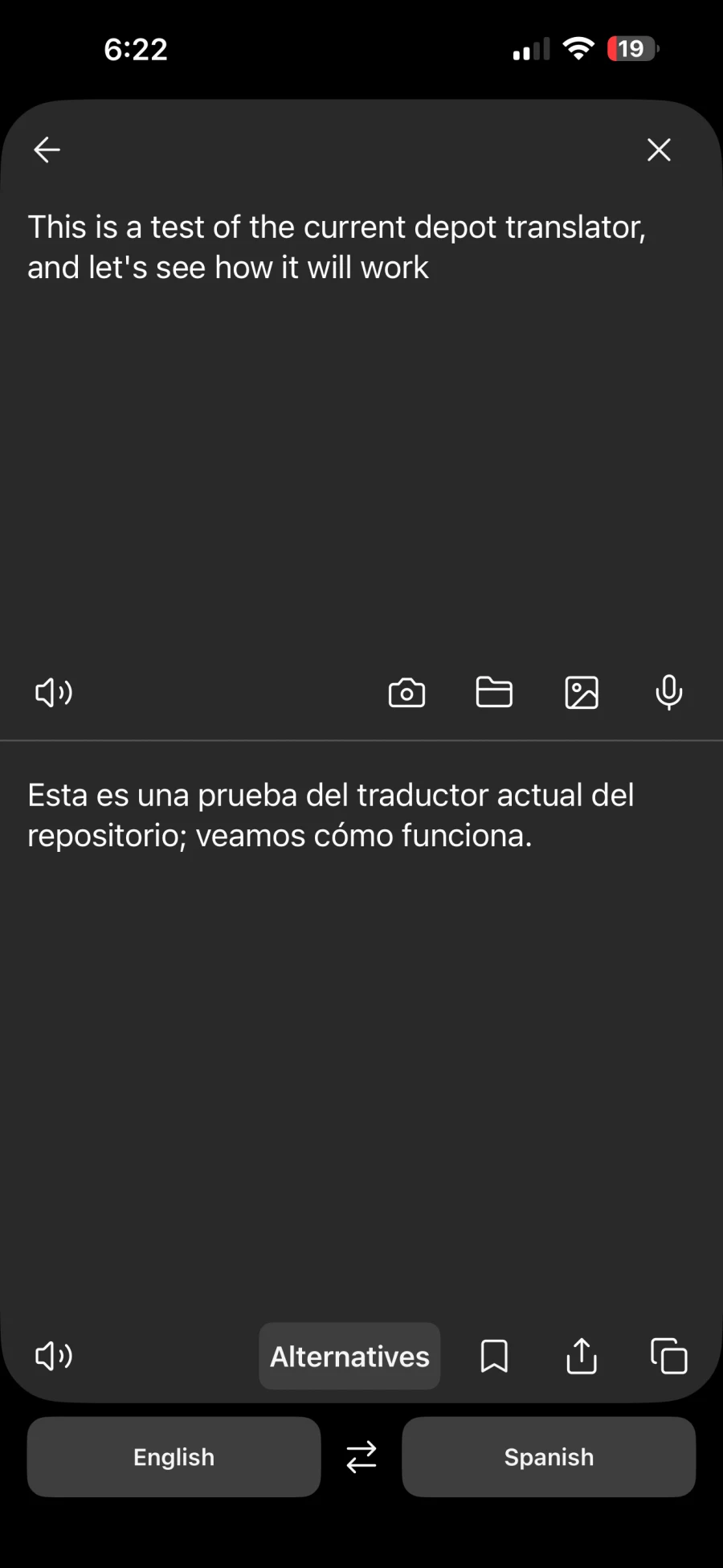
We also tried voice input in the regular DeepL app. It kept the 2 sentences together, but it did not recognise its own name. We said “DeepL translator,” while the English transcript showed “depot translator.” The Spanish result then used “repositorio,” which means “repository,” because it was translating the wrong source words.
This is what happens when speech recognition fails before translation begins. Even a good translation model cannot translate the sentence you intended if the app heard a different word. In a real conversation, you would need to notice the mistake, repeat yourself and wait for a new result.
Will it work for you? DeepL Voice makes sense for a company that runs multilingual meetings and needs admin controls, glossaries and downloadable transcripts. The regular DeepL app was less dependable in this voice test. DeepL Voice is far too much for ordering lunch or asking for directions.
How long you can use it: DeepL does not publish a normal free allowance for Voice. You need a licence to start a translated meeting, and you must contact sales for the price. Do not confuse this with the regular DeepL Individual plan. That plan costs $8.74 per month when billed yearly in the US, or $104.88 for the year, but it does not include DeepL Voice.
Pros: It works with three major meeting platforms, can serve a large audience and includes the controls a company may need.
Cons: The regular DeepL app misheard “DeepL” as “depot” in our voice test, and that error changed the Spanish translation. DeepL does not show a simple price for Voice, and the regular DeepL subscription does not unlock it. Even that separate Individual plan costs about $105 a year, compared with $69.99 for OmniTalk's yearly plan in the US. DeepL Voice still needs a company licence and meeting setup.
Choose DeepL Voice when your company runs multilingual meetings and many people need captions. Sources: DeepL Voice for Meetings and DeepL plan pricing, retrieved 2 September 2026.
6. iTranslate: many travel tools in one app
What you can use it for: iTranslate puts voice, text, camera, website and offline translation in one travel app. It also includes dictionaries and saved phrases.
How it works: Open Voice Mode and take turns speaking. The app also lets you point the camera at a sign, look up a word or save a useful phrase for later.
Will it work for you? Only if you are willing to pay for PRO. The free version was almost useless for live translation in our check because too many important features were locked. You can download the app for free, but you cannot do much of what you came for.
How long you can use it: The free download is not a complete translator. The US App Store lists PRO plans from $12.99 per month or $99.99 per year. A free trial becomes a paid subscription unless you cancel it.
Pros: If you pay, you get more than 100 listed languages, voice conversations, camera tools, phrasebooks, dialect options and offline packs.
Cons: The free app was too limited for us to recommend. Most of the useful travel features sit behind PRO, and the App Store shows several prices for similar plans. Read the renewal screen carefully before starting a trial.
Choose iTranslate only if you are happy to pay for a large set of travel tools. For a useful free option, try Google, Apple or Microsoft, or use OmniTalk BASIC on an iPhone. Source: iTranslate on the App Store, retrieved 2 September 2026.
7. Naver Papago: a focused choice for East Asia
What you can use it for: Papago is a free translator that supports a smaller, more focused group of languages. It covers Korean, Japanese, Chinese, English and several other languages used across Asia.
How it works: In Conversation mode, two people take turns speaking their own language. Papago also translates text, photos, handwriting, websites and documents.
Will it work for you? Put Papago on your shortlist if you are visiting Korea, Japan, China, Vietnam, Thailand or Indonesia. It becomes much less useful if your language is not one of the 14 it supports.
How long you can use it: Papago is free and has no published limit for conversations. Its offline mode covers text translation; do not assume every voice feature will work without internet.
Pros: It is free, has no confusing paid plans and covers its main Asian languages well. The photo, handwriting and website tools are useful while travelling.
Cons: Papago supports only 14 languages, while several rivals support more than 100. Voice features and privacy details can also change with the language and phone you use.
Choose Papago for travel or study in Korea, Japan, China and South-East Asia. Source: Naver Papago on the App Store, retrieved 2 September 2026.
8. Yandex Translate: a large free alternative with strong Russian support
What you can use it for: Yandex Translate handles text, photos, websites and spoken input in more than 90 languages. It is especially useful when Russian is part of the conversation.
How it works: In Dialog mode, each person taps the microphone beside their language and says a short sentence. The other person sees the translation in large text and can hear it aloud. Yandex recommends speaking steadily, keeping sentences short and holding the phone close.
Will it work for you? Try it if you need Russian or want another free option beside Google and Microsoft. The conversation is turn by turn, so a long chat may start to feel slow.
How long you can use it: The main app is free, with no published minute limit for Dialog mode. The optional Translate AI mode needs an account and has a separate request limit. Yandex says that mode also takes a little longer.
Pros: It is free, supports many languages and includes camera, website and dictionary tools. You can also download dictionaries for offline text translation.
Cons: On Android, voice input and Dialog mode need internet. Offline use mainly covers typed text, and each person must tap before speaking. The advanced model is slower than Quick translation.
Choose Yandex when Russian matters or you want a free app for short, turn-by-turn conversations. Sources: Yandex Dialog mode, translation models and offline limits, retrieved 2 September 2026.
9. Samsung Interpreter: built into supported Galaxy phones
What you can use it for: Samsung Interpreter works for face-to-face chats, tours, presentations and meetings on supported Galaxy devices. Conversation mode is for two people. Listening mode follows one speaker for longer periods.
How it works: Conversation mode splits the display so both people can read from their side. The app shows the original words and the translation, then can read the result aloud. On some foldable Galaxy phones, the other person can use the cover screen.
Will it work for you? Yes, if you already have a supported Galaxy phone and both languages are available. If you use another Android brand or an iPhone, this is not an option.
How long you can use it: Interpreter comes with supported Galaxy devices, and Samsung does not publish a minute limit. Download the language packs before you need them. Support depends on your phone, region, One UI version and languages.
Pros: There is no separate subscription. You get downloadable language packs, a split-screen conversation view and Listening mode. It also works closely with Galaxy phones and Galaxy Buds.
Cons: It works only on selected Samsung devices. Samsung tells people to speak one at a time, and the available features change by model and region. Other Android users cannot simply install it.
Choose Samsung Interpreter if it already comes with your Galaxy phone. Try it before downloading another app for travel, a tour or a meeting. Sources: Samsung's Interpreter setup guide, Listening mode guide and current device notes, retrieved 2 September 2026.
10. JotMe: meeting features in an app we could not recommend
What you can use it for: JotMe offers live captions, translated meetings, lecture notes and transcripts. Other people can open a shared translation in their browser.
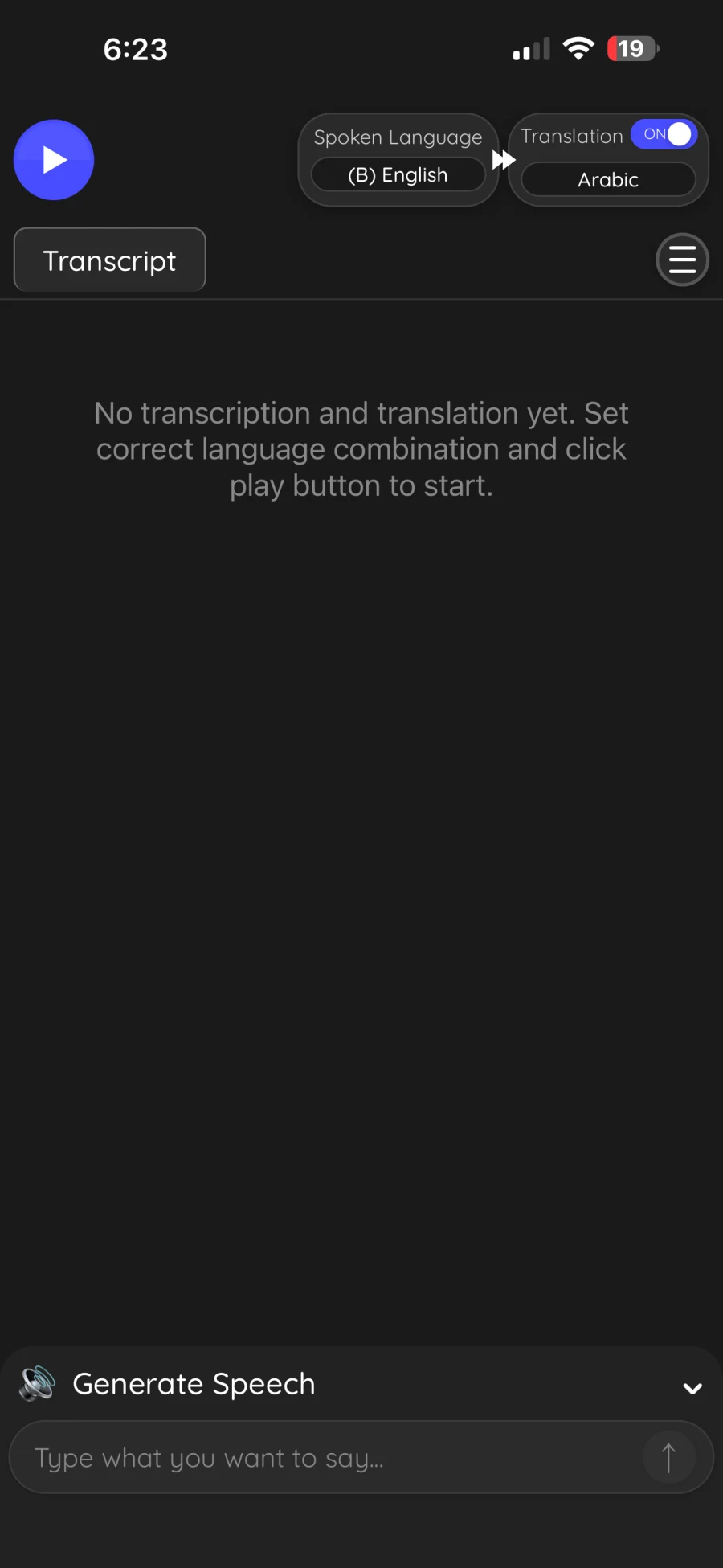
How it works: The host opens JotMe on the web, desktop, mobile or through its Google Meet extension. The app turns speech into translated text or audio and can create notes afterwards. Before we reached the translator, JotMe asked about our job and company. We downloaded a translator, not a business survey. Those questions felt unnecessary.
Will it work for you? We cannot recommend the JotMe mobile app after our check. It was slow, too many translations needed checking and the interface felt years out of date. Some controls sat too close together, the screen had no clear order and we often did not know what to tap next. This was not just about looks. The poor layout made the app hard to use during a live conversation.
On 2 September 2026, the US App Store showed 2.8 out of 5 from 4 ratings. Four ratings are too few for a firm verdict, and the number may change. Still, such a low early score does not inspire confidence.
How long you can use it: The free plan gives you 20 live translation minutes and 50 transcription minutes each month. Pro costs $20 a month for 200 translation minutes, or $10 a month with yearly billing. Premium costs $30 a month for 500 minutes, or $15 a month when billed yearly.
Watch the meter. Some JotMe models use minutes at 2 or 5 times the normal rate. Translating into several languages can increase the cost again. Your 20 free minutes may therefore run out in much less than 20 minutes.
Pros: JotMe clearly publishes its limits. It also offers meeting integrations, browser access for guests, notes, transcripts and shared captions. A team may still find those desktop features useful.
Cons: The onboarding asks about your job and company before you can translate. The mobile app felt dated, crowded and confusing, with some controls placed too close together. It was also slow, the translations were uneven and the free allowance may cover only one short meeting.
We would not use the JotMe mobile app for a live conversation. If your company needs shared captions, compare its desktop tools with DeepL Voice before paying. For personal translation on one iPhone, OmniTalk was far easier to use. Sources: JotMe on the US App Store, usage limits and pricing, retrieved 2 September 2026.
Which live translator should you choose?
You want fast, convenient live translation: Choose OmniTalk. In our fast-speech test, it kept recognising speech and adding translated sentences while Google Translate stopped updating. Its sentence-by-sentence view makes the conversation easy to follow.
You want one free app for almost everything: Start with Google Translate. It covers the widest range of everyday jobs and costs nothing.
You need an offline conversation on iPhone: Apple Translate and OmniTalk both handle spoken, two-way conversations without internet once you download the languages. Apple is the simplest built-in choice. Pick OmniTalk for longer talks, noisy places or a clearer sentence-by-sentence layout.
You are travelling in Korea or Japan: Install Papago alongside Google Translate. Its short language list matters less when your language pair is one of its main strengths.
You own a recent Samsung Galaxy phone: Try Samsung Interpreter before downloading anything else. It already has split-screen conversations and a Listening mode for tours, presentations and meetings.
You need Russian: Try Yandex Translate. It is free, but Dialog mode still needs internet and makes you tap before each turn.
You need translation in a work meeting: Use OmniTalk when one person wants to follow the room on an iPhone. Choose DeepL Voice when everyone needs captions, meeting-platform support or company controls. JotMe has similar tools, but its slow and awkward mobile app stopped us from recommending it.
You only need a few travel phrases: Do not pay yet. Google, Apple, Microsoft and Papago may already do everything you need.
Where can you use a live translator app?
Travel
Use Conversation mode at a hotel, station, shop or restaurant. For a menu or sign, the camera is usually faster. Download your languages before the trip in case mobile data or Wi-Fi fails.
Work
For a short conversation with one phone between you, try Google, Microsoft, Apple or OmniTalk. OmniTalk is better suited to longer speech or a meeting where one person follows the translation on an iPhone. If everyone in an online meeting needs captions on their own screen, DeepL Voice has tools made for that job. JotMe does too, but we cannot recommend its mobile experience.
Phone and video calls
A phone call is different from two people sharing a translator across a table. Apple can translate calls on supported hardware and languages. Most apps here are made for nearby speech or meetings instead. OmniTalk does not translate normal phone calls.
Family and daily life
Two relatives can place one phone between them and read both sides of the conversation. Keep the original words visible. That makes it easier to spot a wrong name, date or number.
Medical, legal and safety decisions
Do not rely on a consumer app when the decision really matters. Use a qualified human interpreter when one wrong word could affect consent, legal rights, medical treatment or safety.
FAQ
Are live translator apps really free?
Some are. Google, Apple, Microsoft, Papago and Yandex do not publish a minute limit for their basic conversation tools. OmniTalk BASIC is free with no expiry or minute cap when the languages are downloaded to your iPhone. Samsung Interpreter comes with supported Galaxy devices. Other apps limit your minutes or lock voice features behind a paid plan.
What is the best free live translator app?
Google Translate is the best free place to start. It handles speech, conversations and camera translation across a large language list. On an iPhone, Apple Translate is a good free choice when you need to work offline.
Can a translator app translate a phone call?
Yes, but you need a phone or service that supports it. Apple offers call translation on certain devices and languages. OmniTalk is made for people speaking nearby and for meetings; it does not translate a normal phone call.
Can I use a live translator without internet?
Yes. Apple Translate and OmniTalk both support spoken, two-way conversations offline after you download the languages. Apple calls this On-Device Mode; OmniTalk calls it BASIC mode. Both apps can listen, translate and show the conversation without internet. Offline language support is smaller, so download both languages and test them in Airplane Mode before you leave.
How much does a live translator app cost?
You can pay nothing. Several large apps offer basic conversation translation for free. Paid plans in this list start at $5.99 a month in some countries and go up to $30 a month. Business meeting tools may ask you to contact sales instead of showing a price.
How long does free live translation last?
It depends. JotMe gives you 20 live translation minutes each month. OmniTalk BASIC has no time limit, and the free plan also includes 1 hour of PRO translation per month. Google, Apple and Microsoft do not publish normal voice-minute limits for their free translator apps.
Which app is best for travel?
Google Translate is the safest all-round travel choice. Use Apple Translate for free offline conversations on iPhone, add Papago for East Asia and choose OmniTalk for longer face-to-face talks.
Which app is best for work meetings?
Choose OmniTalk when one person wants to follow an in-person meeting or long speech on an iPhone. Choose DeepL Voice when many people need captions or a connection to the meeting platform. JotMe offers similar features, but it was slow and difficult to use in our check, so we cannot recommend its mobile app.
We checked features, limits and US prices on official product pages and App Store listings on 2 September 2026. Our hands-on notes come from practical use in different settings, not a controlled lab test. Prices and limits can change.
👉 Get OmniTalk on the App Store · OmniTalk features · Support FAQ